 |
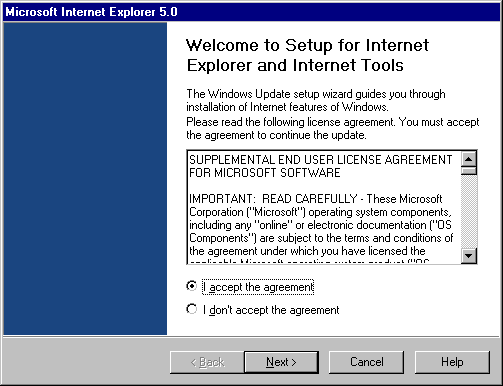
Accept the agreement and press Next
> to continue. |
 |
|
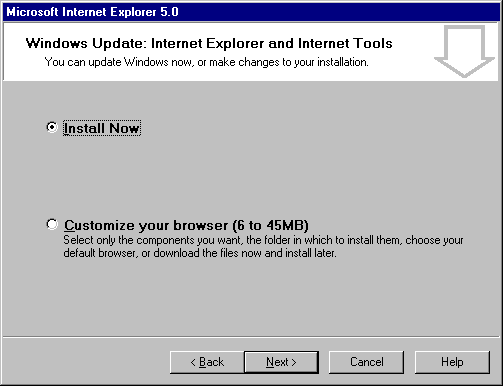 |
You can customize your IE5 setup if you like, but
we recommend that you just click, "Install" to install the common components of Internet Explorer. |
 |
|
 |
|
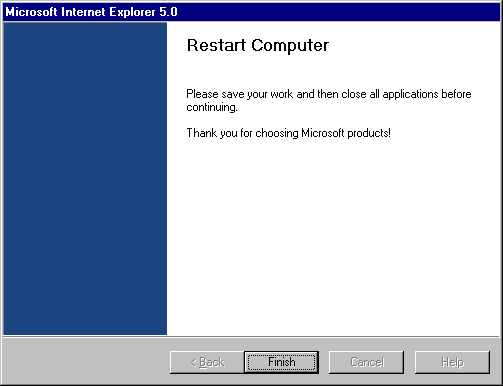 |
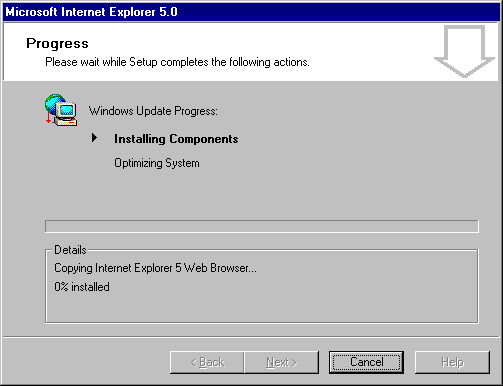
When the process of copying files and optimizing your
system has completed, you will need to restart your computer. |
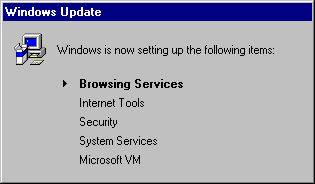 |
As the computer finishes restarting, just before it
reaches the Desktop, you will see the Windows Update appear to finish installing Browsing
Services... |
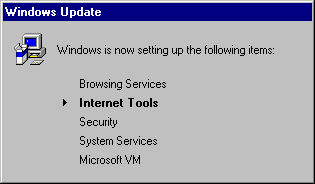 |
... Internet Tools... |
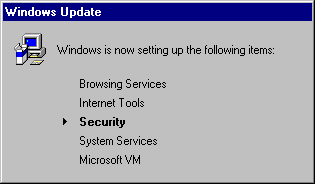 |
... Security... |
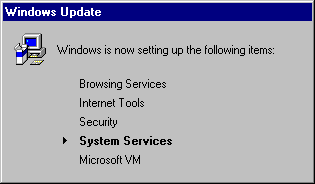 |
... System Services... |
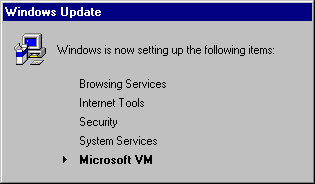 |
... and the Microsoft VM (Virtual Machine). |
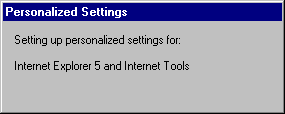 |
Just as the computer gets to the Windows Desktop, it
will configure your Personalized Settings for the components you chose to install. |