 |
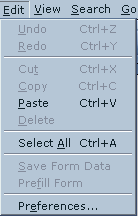
Double click on the Netscape icon, and then click on 'Edit' up at the top of the screen. Then, click on preferences. |
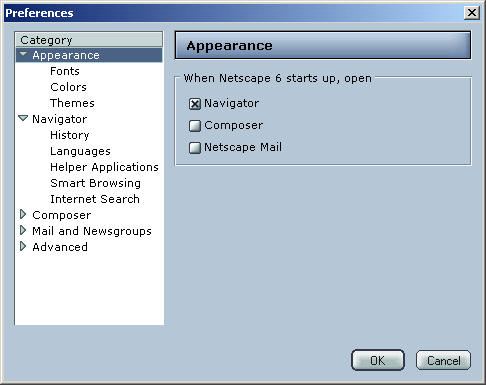 |
Next, make sure that your set up matches the setup shown here. To move on to the next section of your Netscape preferences, simply click on the next section at the left. |
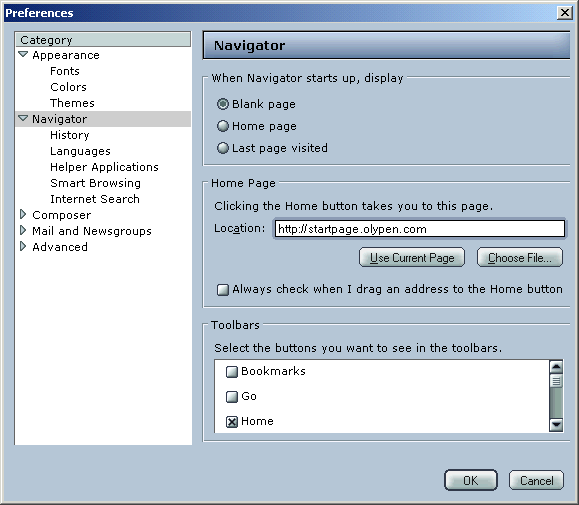 |
Here, you can set what your home page is. This is the first page you see when your browser opens, and also the page that comes up when you click on the Home button. |
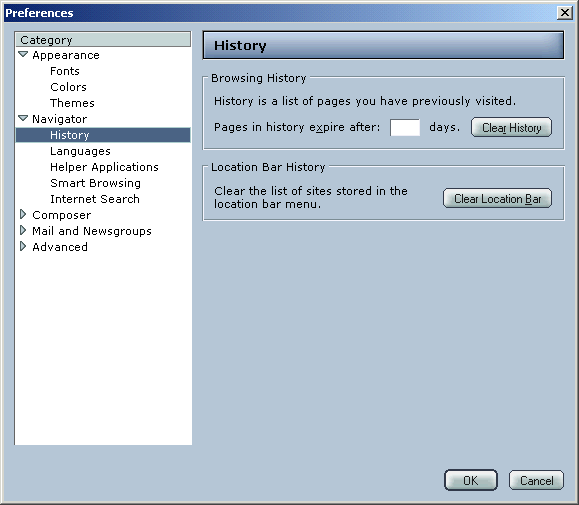 |
Here, you can set how long URL's stay in your computer's memory. The longer they stay, the more likely it is that when you type your address, it can automatically finish typing it out for you. (ie. if you type www.mi, it may see that you've been to www.microsoft.com before, and it will automatically finish typing that address!) |
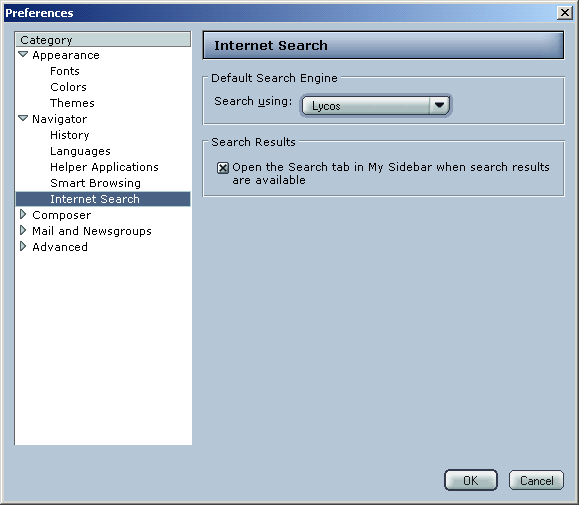 |
This is where you can change what search engine is used when you click on the "search" button within Netscape. |
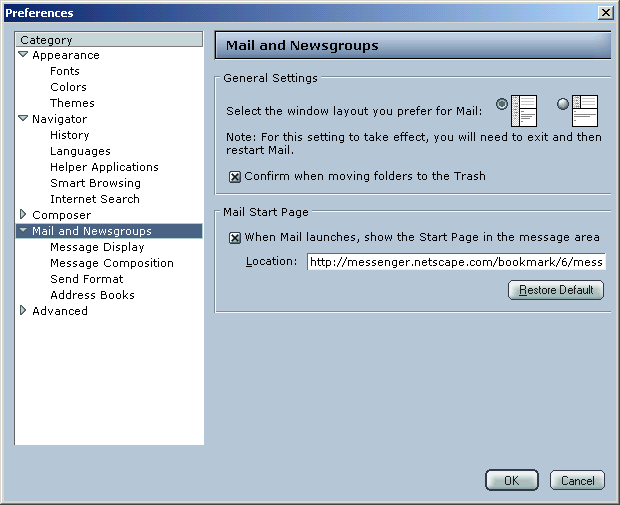 |
Only change this info to what is shown here if you plan on using Netscape as your mail handler. If you wish to get your e-mail through Outlook, Outlook Express, Web Mail, leave these settings blank! |
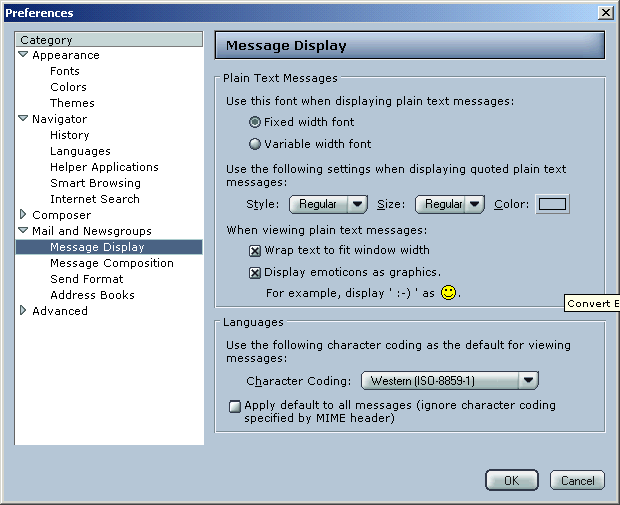 |
Only change this info to what is shown here if you plan on using Netscape as your mail handler. If you wish to get your e-mail through Outlook, Outlook Express, Web Mail, leave these settings blank! |
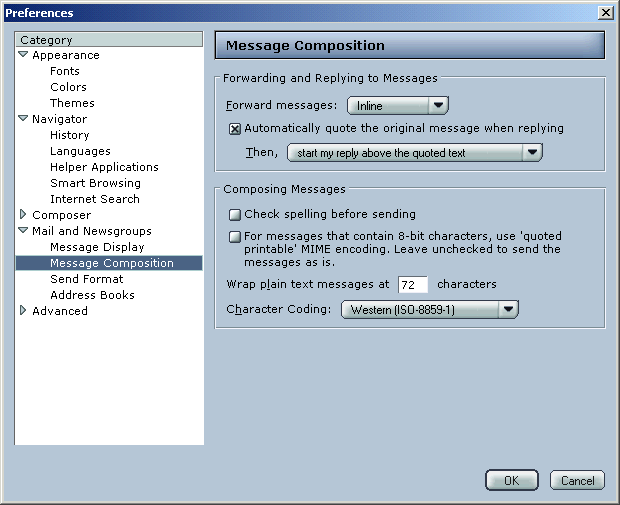 |
Only change this info to what is shown here if you plan on using Netscape as your mail handler. If you wish to get your e-mail through Outlook, Outlook Express, Web Mail, leave these settings blank! |
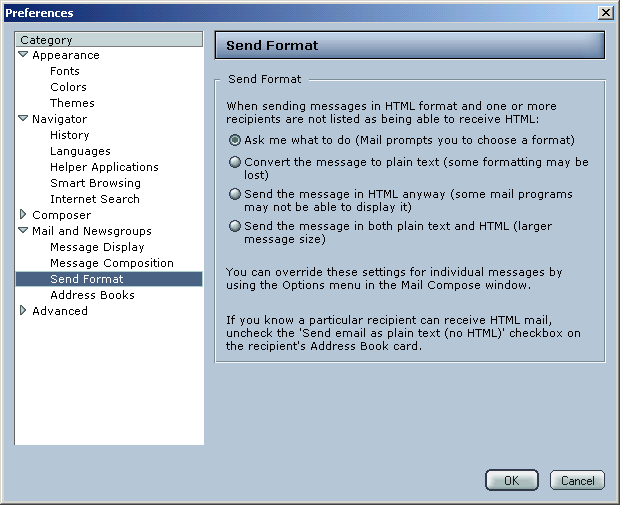 |
Only change this info to what is shown here if you plan on using Netscape as your mail handler. If you wish to get your e-mail through Outlook, Outlook Express, Web Mail, leave these settings blank! |
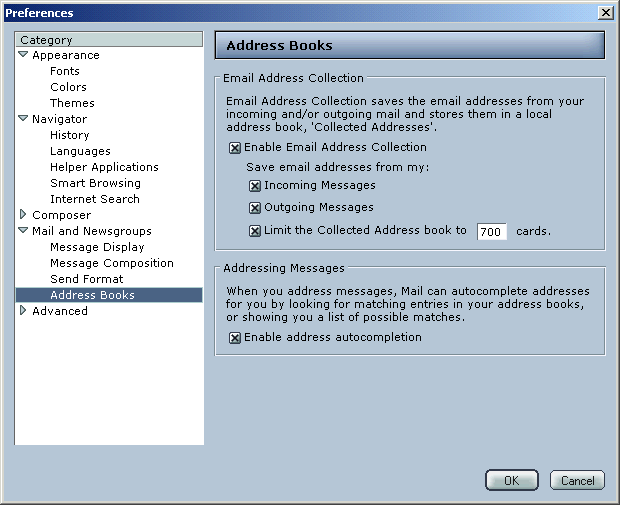 |
Only change this info to what is shown here if you plan on using Netscape as your mail handler. If you wish to get your e-mail through Outlook, Outlook Express, Web Mail, leave these settings blank! |
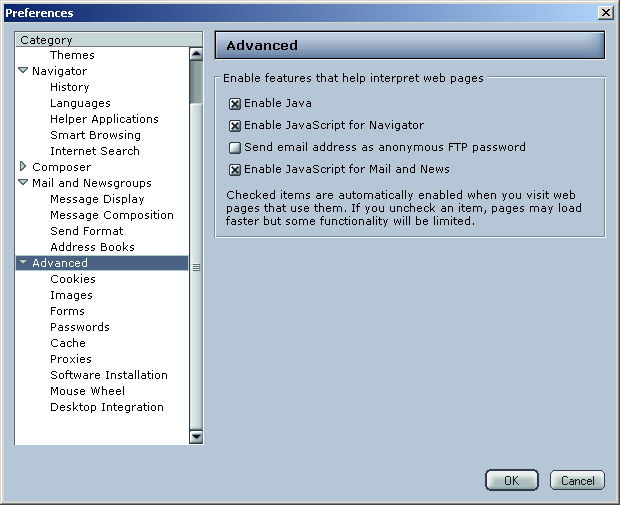 |
These settings determine how much functionality your computer allows. In some rare circumstances, you may wish to turn off Java support (most of these circumstances are in relation to security), but most of the time, it should be fine. |
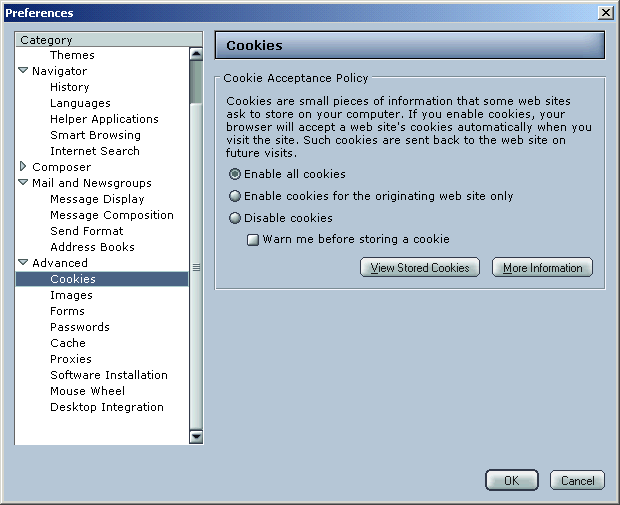 |
Cookies determine whether or not websites remember you. Some sites require them, others are just easier to use if this option is on. Have you ever gone to a site a second time (ie. webmail, etc.) and you didn't even need to type in your username? That's a cookie! |
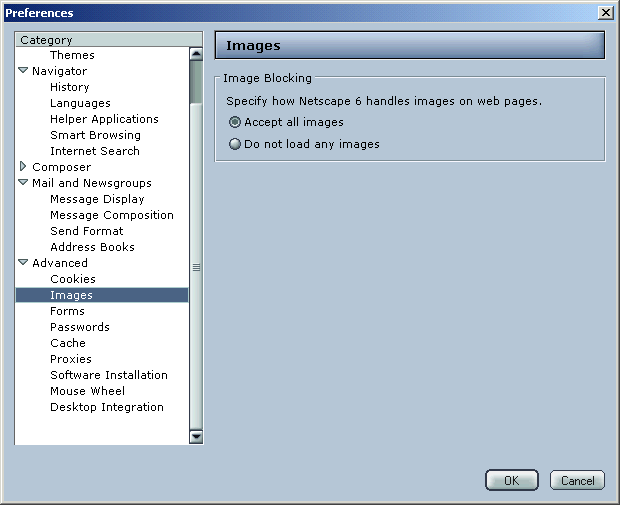 |
If, for any reason, you don't want images to load, you can turn them off here. This will make pages load MUCH faster, but it will make your webpages much more bare. |
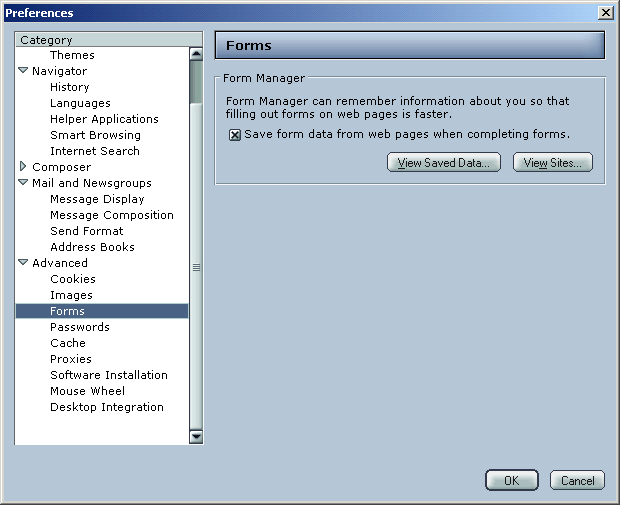 |
This feature allows Netscape to remember what you filled into webpage forms, making the process take much less time when you fill out similar forms on other sites. It is not a good idea if you make a lot of online purchases, however, as that information is retained as well. |
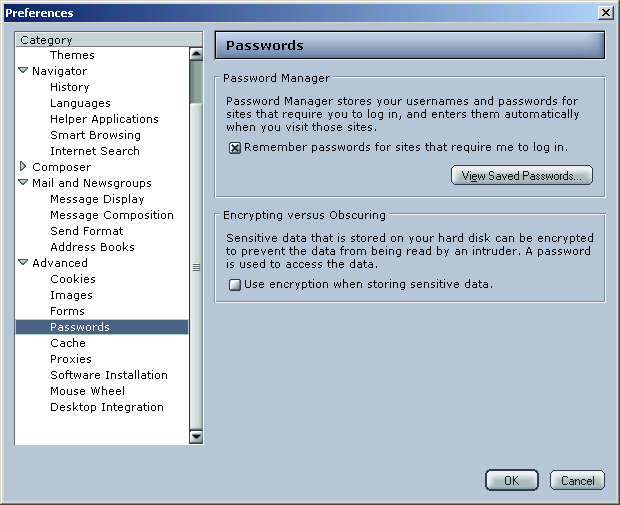 |
Here you can allow Netscape to remember your passwords. If you only have one person using your computer to surf, or if you don't mind other people having access to your sensitive information, it can make your surfing experience faster. |
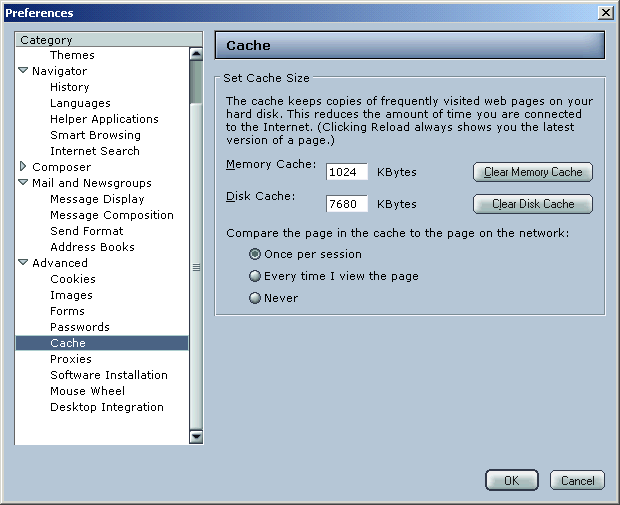 |
When your computer downloads images (which, 99% of the websites have), this will allow Netscape to save those images on your computer so that they appear much more quickly the next time you view them. It makes for faster surfing. Here, you can also set how much space is used for such a purpose. Only experienced users should change these values. |
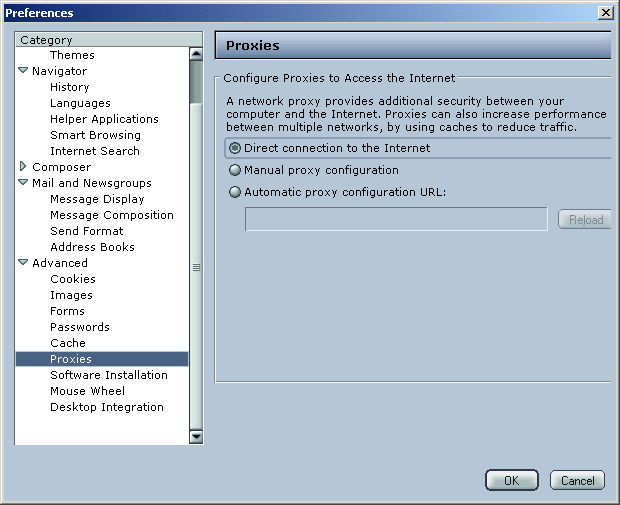 |
This area configures proxy settings, which can allow for faster or more secure surfing, but OlyPen itself does not support proxies, so leave this section as is. |
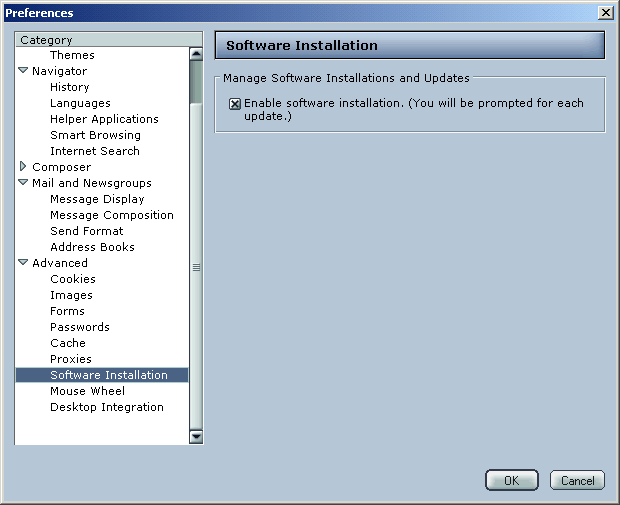 |
This allows Netscape to handle program installations. It is recommended that you allow Netscape to do so, in order to make the isntallation process much easier if you surf with Netscape primarily. |
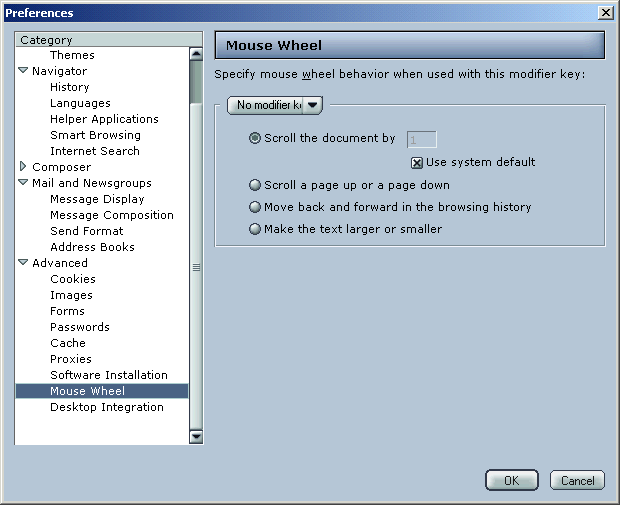 |
If your mouse has a Mouse Wheel (the little rolly wheel between the two buttons), then this will allow Netscape to use this feature. It comes in handy while scrolling on long web pages, because you don't have to go to the scroll bar, but can just roll the wheel instead. |
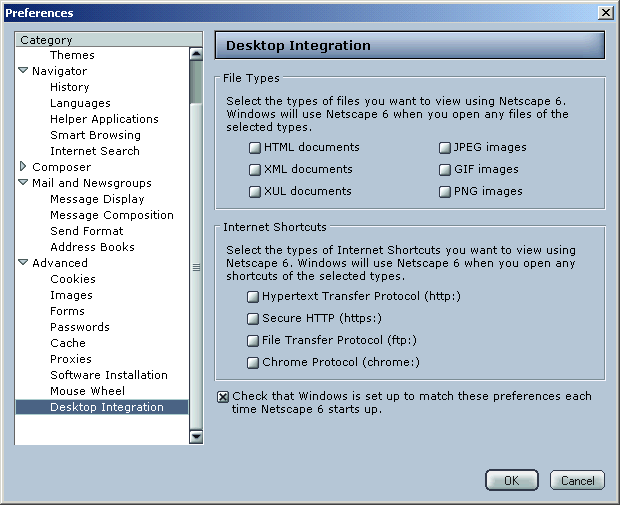 |
Here, you can allow Netscape to handle all internet shortcuts and html pages. If you use Netscape as your primary browser, then it is recommended that you set these all to "on" by clicking on the little boxes so that there is an X on them. (Here, all features are already turned on) |